Story Cast, Procedure Practice, and Courses That Follow the Lecture
New in Innovito Studio: Story Cast comic slides, Procedure sim practice on your photo, stay-close lecture courses, and questions generated from learning outcomes. SCORM export, Arabic and English.
Two new slide types are in the Innovito Studio gallery, and course creation now gives authors a clearer choice about source material. Story Cast turns a lesson beat into a comic page. Procedure sim lets learners rehearse the next action on a photo of their own space, or on an illustrated bench when they do not have one. On the creation side, you can stay close to an uploaded lecture, or ask Studio to write questions from learning outcomes without rewriting the rest of the course.
Story Cast · Procedure sim · Stay close to the lecture · Questions from outcomes
Story Cast
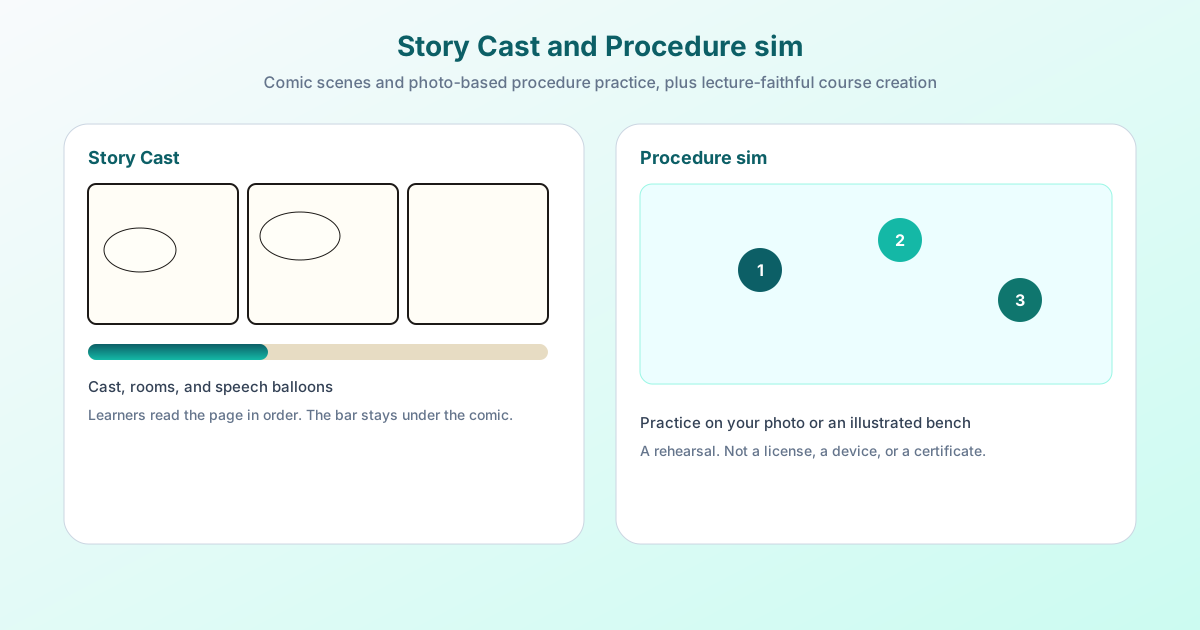
Story Cast is a comic page: a named cast, panels, and speech, thought, or shout balloons. You choose how people look, which room a panel is in, and how the page is laid out—a single splash, a strip, a short issue, or a conversation. A read bar stays under the comic so learners move through the page in order instead of jumping between balloons.
Procedure sim
Procedure sim is a rehearsal of the next action. Put it on a photo of the lab, workshop, ward, or station your learners already know, or use an illustrated bench when you do not have a photo. Learners practice steps such as doing, choosing, reading a value, waiting, or confirming. A miss on a critical step can stop the attempt. The slide says plainly that this rehearses the procedure: it is not a license, a medical device, or a substitute for supervised practice.
Interactive SOP and Procedure sequencer
- Confirm steps in order, with media and checkpoints
- Useful when the sequence itself is the lesson
- Does not need a photo of the workplace
Procedure sim
- Practice the next action on a photo or illustrated bench
- Useful when learners must find the right item in a real space
- A scored rehearsal, not a certificate of competence
Stay close to the lecture
When you create a course from uploaded files, you can mark what each file is—a lecture, a syllabus, or a reading—and choose how Studio should use it. Expand into a course is the usual path: the file guides the topic, and Studio builds a fuller course around it. Stay close to my lecture follows that file from start to end, including speaker notes. A description alone, with no lecture file, still builds the usual course. Academic courses start on Stay close unless you switch them to Expand.
Questions from outcomes
From outcomes, in the editor, takes one learning outcome per line. For each outcome Studio writes two questions: one that asks the learner to apply it, and one that asks them to analyze it. Those questions go in a new lesson at the end. The rest of the course stays as it is. If any requested question is not valid, nothing is added. You can use up to eight outcomes. Counting the new questions toward the passing score is off unless you turn it on.
What this is for
- Faculty who want a course that follows a lecture deck, including speaker notes, instead of a rewritten outline.
- L&D teams who already have outcomes and want apply-and-analyze questions appended, not a new course.
- Stories that should look like a short comic, with the same people across panels.
- Procedure practice on a real photo—lockout, gowning, a bench, a station—where a generic step list is not enough, and a certificate would overclaim.